Running the Complete Analysis
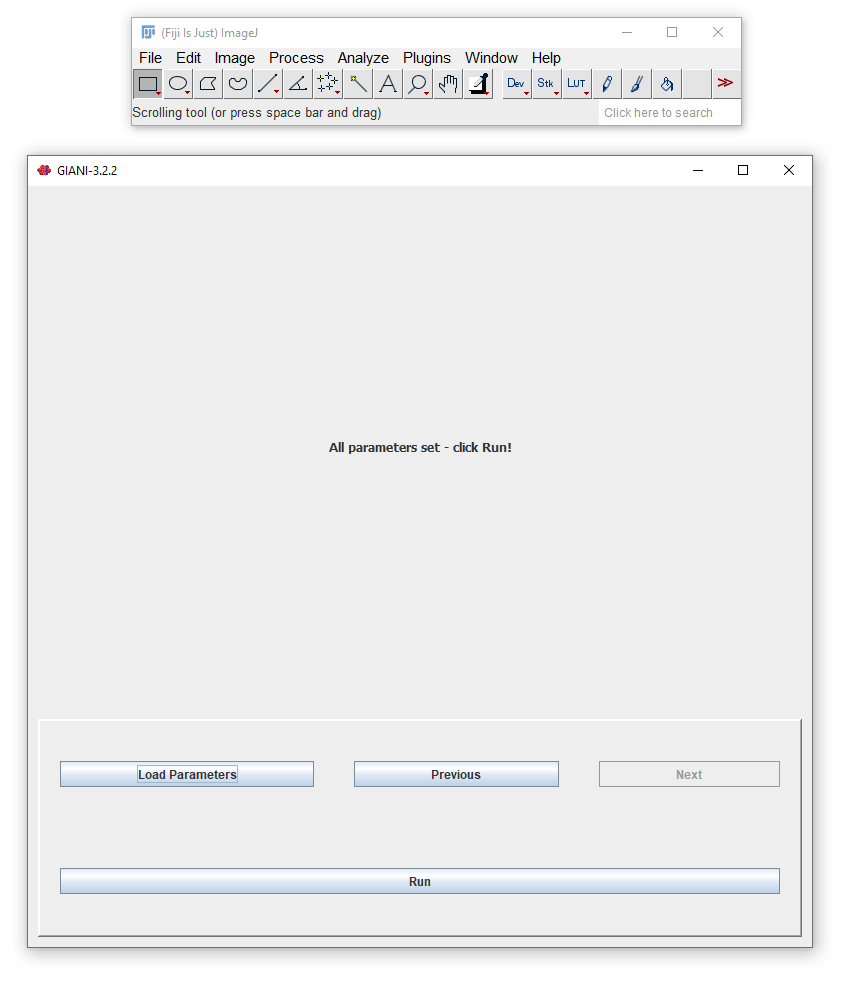
You’ve reached the end of the wizard! You can now click Run to have GIANI analyse all of the images in the input directory you have specified with the parameters you have set. When complete, you should see a folder in the input directory named GIANI v#.###_Output, where #.### is the version number of GIANI used for the analysis - it contains the following:
Folders containing the mask images of the nuclei, cells and cytoplasm for each dataset analysed. The masks are saved in PNG format, one image per Z section.
Zip files containing the regions of interest (ROIs) denoting the nuclei, cells and cytoplasm for each of the datasets analysed. Any one of these can be loaded into the 3D Roi Manager.
A CSV file containing all measurement data - this can be opened directly in Microsoft Excel, or easily imported into MATLAB, R, Prism, or any other data analysis software.
A properties.xml, containing all the parameters that were used for the analysis. This can be viewed in any text editor (I recommend the excellent Notepad++), or alternatively, can be loaded directly into GIANI to repeat the same analysis on a different data set.