Installing GIANI
The easiest way to get the latest version of GIANI is from within FIJI. The following is a step-by-step guide to enabling the relevant update sites. You only need to perform this procedure once - it will ensure you always have the most up-to-date version of GIANI and it’s dependencies.
Step 1 - Run the FIJI Updater
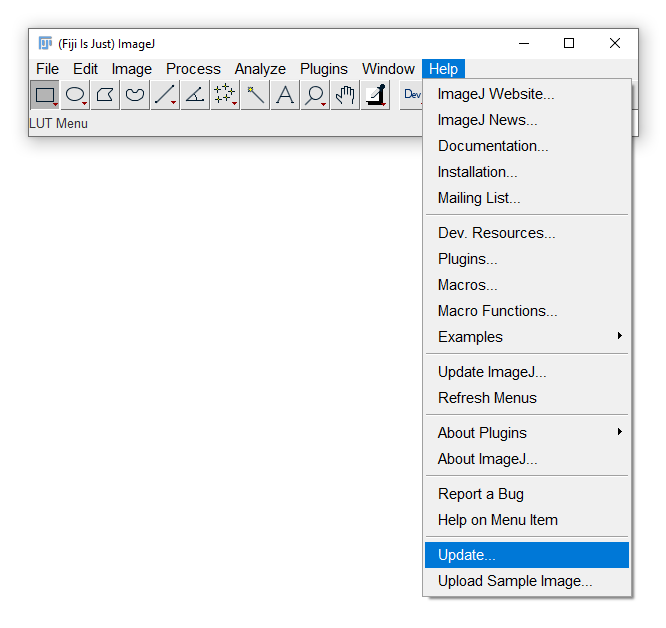
From FIJI’s Help menu, click Update…
Step 2 - Open the Manage Update Sites dialog
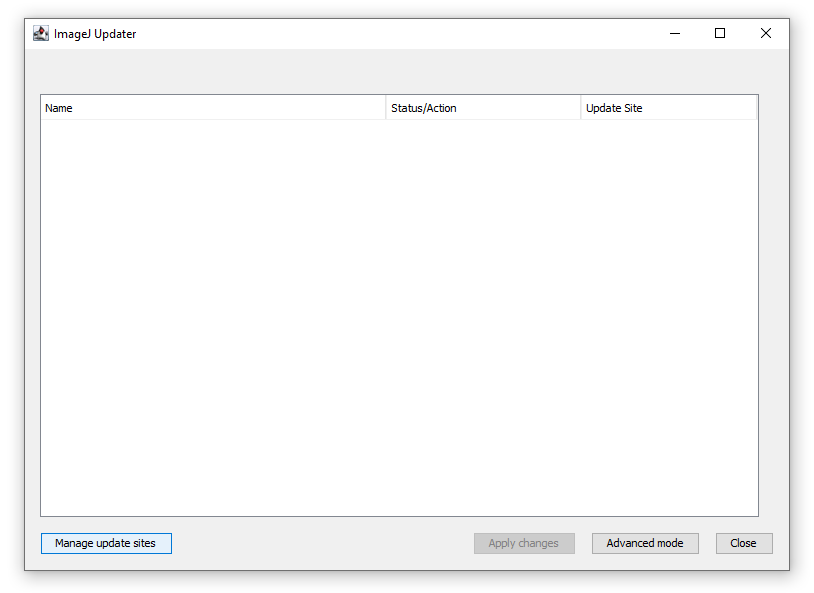
When the ImageJ Updater opens, click Manage update sites
Step 3 - Select the relevant update sites
When the Manage update sites window opens, make sure that each of the following update sites has a tick next to it: * CALM * 3D ImageJ Suite * Bio-Formats * IJPB-plugins * ImageScience
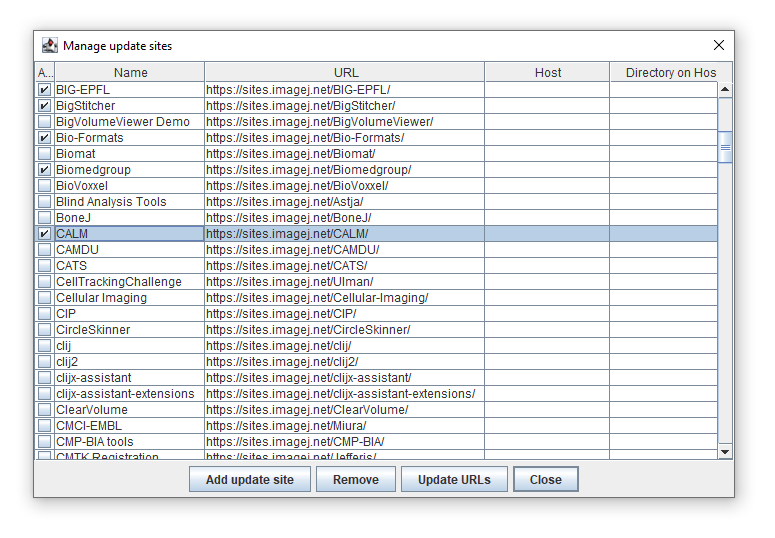
When all the sites have been ticked, click Close.
Step 4 - Apply Changes
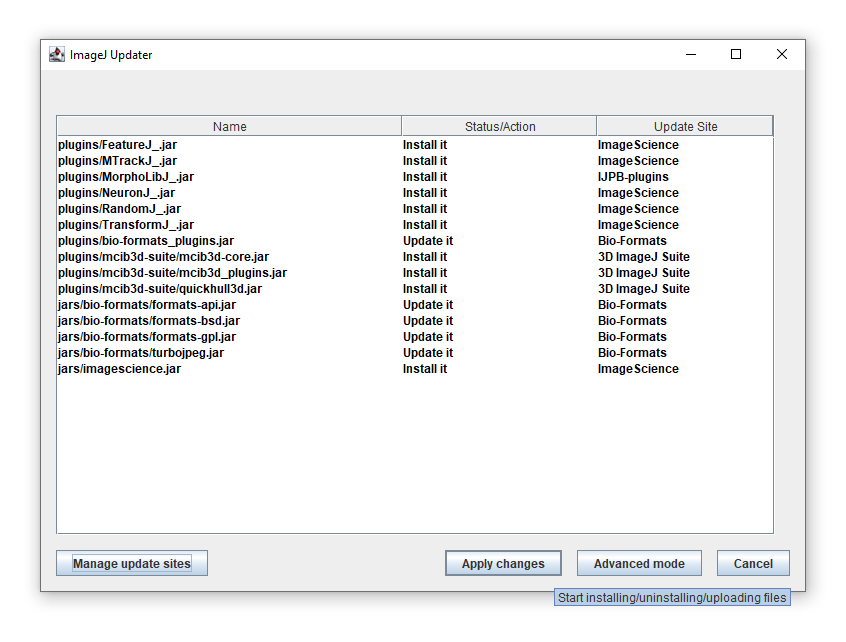
You’ll now return to the ImageJ Updater window, which will be populated with a list of files that FIJI needs to download. Click Apply changes to begin the download process.
Step 5 - Restart FIJI
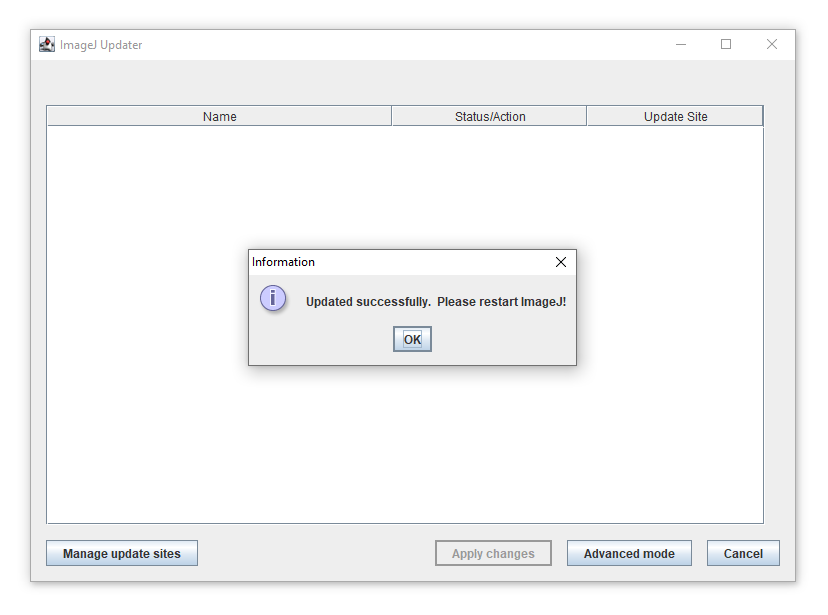
If all has gone well, you will be prompted to restart FIJI to complete the installation process.